
Picture a perfectly normal day in an AVD environment. An external consultant (cough) - maybe someone from the systems integrator that supports your ERP - signs in to one of your session hosts to do exactly the work you hired them for. Their employer runs Microsoft 365 … like everybody else.
So at some point they open the browser on the session host, go to OneDrive and sign in to their own company’s OneDrive. Valid account, MFA passes, everything green. Now a foreign tenant’s OneDrive is open inside your corporate environment, one drag-and-drop away from your file shares.
Nobody attacked anything in that story, and that is exactly what makes it uncomfortable: it happens every day wherever external people work on internal machines. And often none of your controls reacted. Your Conditional Access policies never fired. Why? The consultant authenticated against their employer’s tenant, not yours, so there was nothing for your policies to evaluate. Your firewall saw an allowed HTTPS session to a Microsoft sign-in endpoint, which is exactly what it was.
The same door is open for the less innocent variants: a private Microsoft account, or a throwaway free-trial tenant created purely as an exfiltration target. Same endpoints, same non-reaction.
Microsoft Entra Tenant restrictions v2 (TRv2) closes this. Entra itself refuses the sign-in when the target tenant isn’t on your allow list. However, TRv2 is kind of “inactive” on its own: Client restrictions are enforced only when outbound login traffic is marked with your policy from some system. Historically that “something” was Global Secure Access, a Windows GPO, or a TLS-terminating proxy you had to own and operate.
Azure Firewall can now be that something: HTTP header insertion went generally available at the end of July 2026. Application rules can add or overwrite request headers - on every SKU for plain HTTP, but only Premium can do it inside TLS-inspected HTTPS. Two constraints follow directly and shape everything below: the sign-in endpoints are of course HTTPS, so you need Azure Firewall Premium with TLS inspection, and header insertion exists only on application rules (because you know, that network rules never touch HTTP). This post is how I actually made it work, and everything that went wrong on the way.
Prerequisites
- Firewall: Azure Firewall Premium SKU,
- Licensing: Microsoft Entra ID P1 or P2,
- Entra Roles: At least the Security Administrator role to configure it.
- Azure RBAC: Contributor on the Firewall Policy.
Why the network path, when you don’t manage the devices
TRv2 has three enforcement paths, and they are different products with different coverage:
| Path | Covers | Requires |
|---|---|---|
| Universal tenant restrictions (Global Secure Access) | Any device with the GSA client, on or off network | Managed device, GSA client installed |
| Windows GPO (preview) | Windows + Edge / Windows networking stack; auth and data plane | Domain- or Intune-managed Windows devices |
| Proxy/firewall header injection | Everything routed through that egress, any OS | Central egress with TLS inspection |
If you manage the endpoints, use Global Secure Access. It’s per-device, works off-network, and involves no CA distribution. I’d reach for it first, and the Windows GPO path is the only one of the three that also protects the data plane.
Neither of the other two paths can enforce anything on a machine you don’t manage. The firewall path doesn’t care. It enforces on the network, so every VM, container, appliance and BYO laptop behind that egress is covered whether it’s Windows, macOS or Linux, with nothing installed on it.
The flip side is equally blunt: Devices not behind that egress are untouched. This is a control on a network path, not on an identity. Fine for AVD session hosts and cloud workloads, which never leave; useless for a roaming fleet.
Step 1: Make sure the policy exists in Entra ID
Option A: The Entra Admin Portal
In the Entra admin center: Entra ID > External Identities > Cross-tenant access settings > Default settings > Tenant restrictions > Edit tenant restrictions defaults. If no default policy exists yet, you can create the policy there. The pane then shows your Tenant ID and a generated Policy ID. You need both.
Two tabs control what the policy does. External users and groups sets Access status to Allow or Block for accounts from other tenants. External applications does the same for apps, either all of them or a selected list of app IDs. The default policy always applies to all users in your tenant, and you cannot scope it at the default level. And note the portal’s own warning: blocking all users also blocks all external applications, so the two tabs are not independent.
Partners you want to keep working go under Organizational settings > Add organization, by domain or tenant ID, each with its own allow rules. This is where the consultant from the intro belongs: allow-list their employer’s tenant here as a deliberate decision, instead of leaving every tenant in the world reachable by default. By the way … Consumer Microsoft accounts live in the well-known tenant 9188040d-6c67-4c5b-b112-36a304b66dad if you want to add those too.
Option B: Microsoft Graph
You can also query the Microsoft Graph for this. Ensure you have “Policy.ReadWrite.CrossTenantAccess” or “Policy.Read.All” permissions and send a GET request to:
https://graph.microsoft.com/beta/policies/crossTenantAccessPolicy/defaultThe id field in the response is the policy GUID. That’s the value people spend twenty minutes hunting for in the portal.
Step 2: Inject the header in Azure Firewall
The header
This is the expected header:
sec-Restrict-Tenant-Access-Policy: <your-tenant-id>:<your-policy-id>It goes onto these four Microsoft sign-in domains:
- login.live.com
- login.microsoft.com
- login.microsoftonline.com
- login.windows.net
Microsoft explicitly sanctions TLS decryption of those four domains for this purpose. That’s a narrow exception to the general “don’t break-and-inspect Microsoft 365” guidance. Do not inspect Microsoft 365 traffic broadly.
The rule
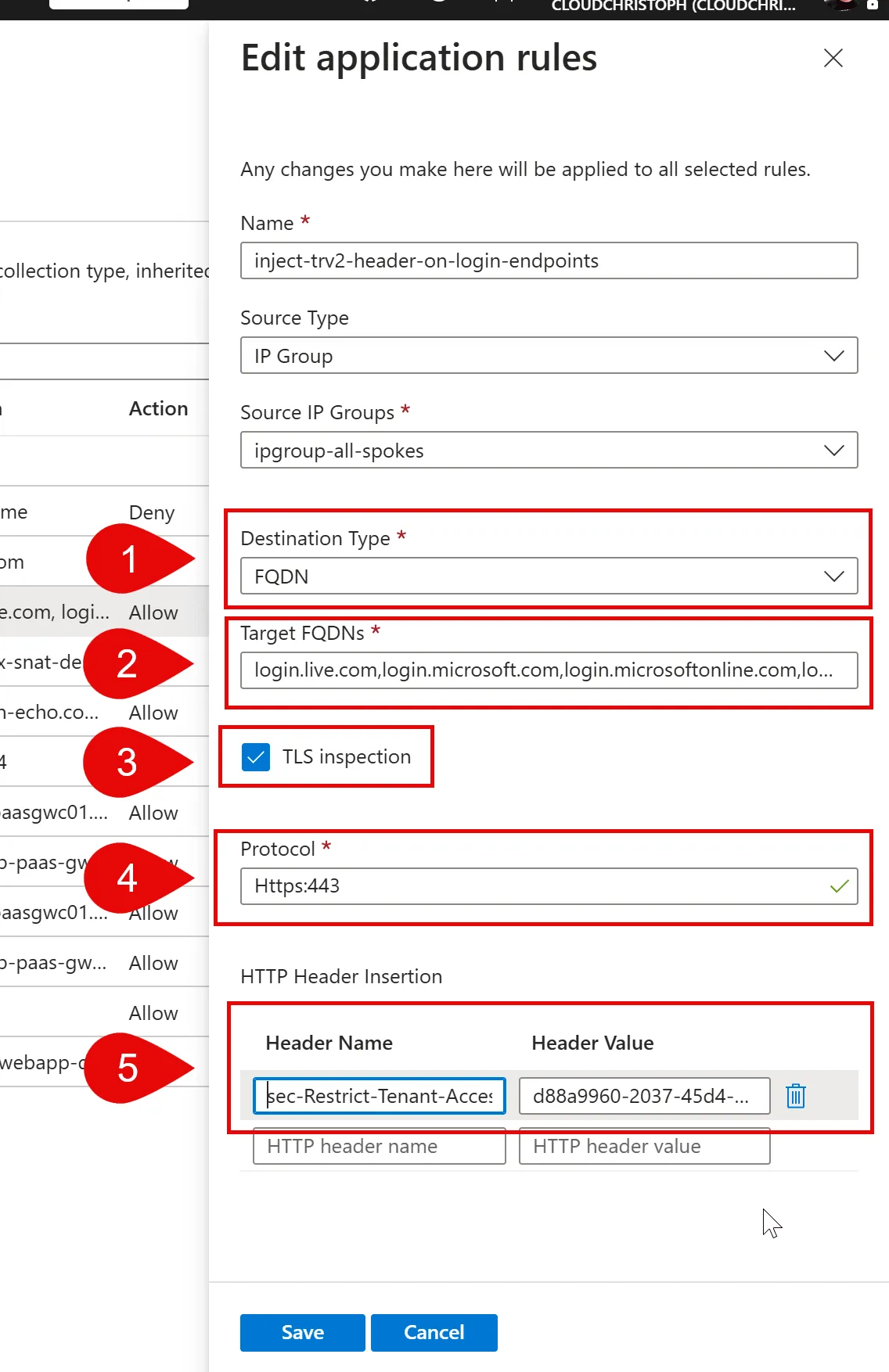
You can configure it using the portal. Just edit your Firewall Policy and add a new application rule.
In the App Rule configure your source and then:
- Destination Type: FQDN
- Target FQDNs: login.live.com,login.microsoft.com,login.microsoftonline.com,login.windows.net
- Enable TLS Inspection
- Protocol: Https:443
- In the HTTP Header Insertion add
sec-Restrict-Tenant-Access-Policywith the value<your-tenant-id>:<your-policy-id>
Or configure it using IaC (my preferred and recommended way!). Here is a Terraform snippet for your Application Rule Collection Group. Adapt to your needs:
# inside azurerm_firewall_policy_rule_collection_group
application_rule {
  name             = "allow-entra-signin"
  source_addresses = ["10.2.3.0/24"]
  destination_fqdns = [
    "login.live.com",
    "login.microsoft.com",
    "login.microsoftonline.com",
    "login.windows.net",
  ]
  terminate_tls = true

  protocols {
    type = "Https"
    port = 443
  }

  http_headers {
    name  = "sec-Restrict-Tenant-Access-Policy"
    value = "${var.tenant_id}:${var.trv2_policy_id}"
  }
}
Do not copy Microsoft’s own header-insertion how-to here. That article uses tenant restrictions as its worked example, and the example still shows the v1 headers: Restrict-Access-To-Tenants and Restrict-Access-Context. Follow it and you’ll build a legacy TRv1 setup with a tenant allow-list crammed into a header value.
TRv2 replaces all three v1 headers, including sec-Restrict-Tenant-Access-Policy: restrict-msa for login.live.com, with the single policy reference above. If you’re migrating, please remove the old ones. Because leaving both in place causes conflicts.
Scope the FQDNs exactly
Put exactly these four FQDNs into the rule. No wildcards. *.login.microsoftonline.com looks like a harmless shortcut, but it pulls subdomains into TLS inspection that must never be inspected.
Two of them matter here: device.login.microsoftonline.com and certauth.login.microsoftonline.com. Both ask the client for a certificate during the TLS handshake. Device registration and device-based Conditional Access rely on the first one (and, as far as I can tell, so does the Primary Refresh Token (PRT) on Entra-joined machines), certificate-based authentication (CBA) on the second. With TLS inspection, the handshake ends at the firewall, and the client certificate never reaches Entra ID. (The firewall can’t pass it on either. It doesn’t have the private key.)
The result: device registration fails, the PRT probably doesn’t renew, the Entra sign-in to your AVD session hosts breaks and CBA stops working. And all of it looks like an identity problem, not like a firewall problem (fun to debug).
Microsoft is clear about this in the tenant restrictions guidance: no subdomains, and keep device.login.microsoftonline.com and enterpriseregistration.windows.net out of TLS break-and-inspect and header injection. The CBA deep dive asks the same for *.certauth.login.microsoftonline.com. If your policy has a broader rule with TLS inspection somewhere else, make sure these FQDNs hit a rule without TLS inspection first.
One more thing on trust: the root CA of your firewall certificate belongs in the LocalMachine store of the session hosts (Cert:\LocalMachine\Root), not only in the user’s store. Many authentication flows run as SYSTEM, for example the AVD agent and the AADLoginForWindows extension, and SYSTEM never looks into a user’s store.
Step 3: Prove it actually works
Three checks, in order, because each one rules out a different failure.
Is TLS interception happening? From a VM behind the firewall you can use a command prompt (Linux or WSL):
openssl s_client -connect postman-echo.com:443It should show you something like this:
 0 s:CN = Azure Firewall Manager CA, CN = postman-echo.com
 1 s:CN = Azure Firewall Manager CA
 2 s:O = Contoso Lab, CN = Contoso Firewall Intermediate CA
Is the firewall actually inspecting? Check the log:
AZFWApplicationRule
| where TimeGenerated > ago(15m)
| where Fqdn has "login."
| project TimeGenerated, SourceIp, Fqdn, Action, Rule, IsTlsInspected, TargetUrl
IsTlsInspected is the column that matters. It is entirely possible to have Action = Allow, the correct rule matched, provisioningState = Succeeded on every resource, and IsTlsInspected = False. In that state the rule works, the traffic flows, the user is happy, and no header is being inserted at all. The control is off and nothing tells you.
The end-to-end test. From behind the firewall, sign in against a tenant that isn’t allow-listed. In the intro scenario, that would be the consultant opening their employer’s OneDrive on your session host. The error that is shown is:
Access is blocked

The Contoso IT department has restricted which organizations can be accessed.
...
And in the Troubleshooting Details (or in PowerShell or Az CLI) you’ll find the message:
AADSTS5000211: A tenant restrictions policy added to this request by a device or
network administrator does not allow access to 'tenant name'.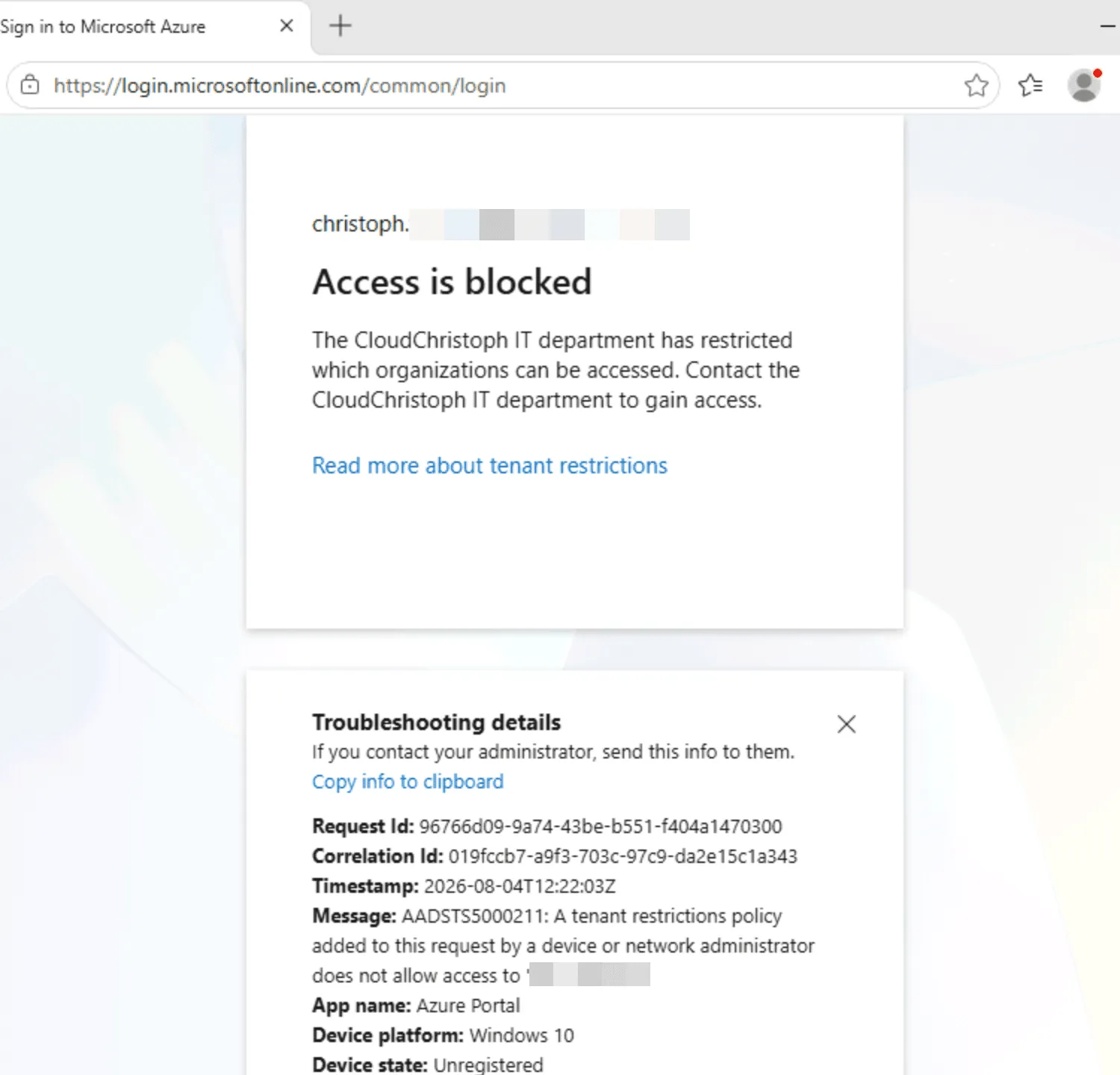
What could go wrong
(Everything that can go wrong with the TLS inspection setup itself: Key Vault permissions, certificate rotation, client trust. I think this deserves a separate post 😉. Here I’ll stick to what’s specific to this.)
QUIC bypasses inspection entirely. Azure Firewall does no FQDN, URL or TLS inspection for QUIC on UDP 80/443. If you never allowed UDP 443 outbound, browsers fall back to TCP and this is a non-issue. If you did allow it in a network rule, you’ve built a bypass around your own control.
Scope. This is authentication-plane protection only. It does not stop anonymous access to Teams meetings, SharePoint links or Forms. That needs Global Secure Access or the Windows GPO path. It is not DLP: a user already signed in to your tenant can still move data wherever they’re permitted to.
Logs never show the header. AZFWApplicationRule has no column for inserted header names or values. You get IsTlsInspected, the matched rule, and TargetUrl. If you want proof that enforcement happened, look at the client first: AADSTS5000211 means Entra ID saw the header and applied your policy. The Entra sign-in logs only help if the blocked account is one of yours, for example your user signing in to a partner tenant as a guest. An account from another tenant, like the consultant’s, signs in to its own tenant, and that’s where the log ends up.
Symptoms and what they usually mean
A reader ran into most of these on AVD. Here is what I’d check first:
504 Gateway Time-out instead of AADSTS5000211. That’s not what a deny from Azure Firewall looks like. A deny ends with an HTTP 470 or a reset. A 504 comes from a proxy that couldn’t reach the upstream server. Either there is another proxy in the path, or the firewall itself (as the TLS proxy) can’t get out. Check the effective routes of the VM, DNS resolution on the firewall and SNAT.
Nothing in the firewall logs. First check where you’re looking. The query above needs the resource-specific logs (AZFWApplicationRule, AZFWNetworkRule), not the legacy AzureDiagnostics table. Then look into AZFWNetworkRule: if a broad network rule for TCP 443 matches first (see the tip in Step 2), the flow ends up there, without TLS inspection and without the header. Same for UDP 443 (see QUIC above).
The block doesn’t show up in my sign-in logs. Expected for an account from another tenant (see above). The sign-in is logged there, not in yours. Microsoft documents this explicitly for service principals. And with a 504, my guess is the request never reached Entra ID at all.
Bastion broke. Azure Bastion doesn’t belong on the firewall path. No route table with 0.0.0.0/0 to the firewall and no default route via BGP on the AzureBastionSubnet, forced tunneling isn’t supported there. Also check the VM subnet: if the return traffic to the Bastion subnet goes through the firewall, you have asymmetric routing. Microsoft has a troubleshooting guide for exactly this.
Conclusion
This is the right tool when you have a central egress that all the relevant VMs/systems already traverse, and you cannot install anything on those. AVD estates, jump hosts, build agents, appliances. In that shape it’s the only one of the three TRv2 paths that can enforce anything at all. The consultant from the intro either gets blocked at sign-in, or their employer’s tenant is on your allow list because you put it there. And this is an informed decision you made and not a gap you simply didn’t know about.
It’s the wrong tool if your fleet is managed. Global Secure Access gives you the same authentication-plane outcome per device, and also works when people are at home or on the road.
Hope it helps!
Further reading
- Generally Available: HTTP header insertion in Azure Firewall (Azure update, July 2026)
- Set up tenant restrictions v2
- Configure HTTP header insertion in Azure Firewall
- Azure Firewall Premium certificates
- AZFWApplicationRule table reference
- Restrict access to a tenant: set up tenant restrictions (which endpoints to keep out of TLS inspection)
- Microsoft Entra certificate-based authentication technical concepts (CBA and TLS inspection)
- Troubleshoot Azure Bastion connection failures caused by routing and forced tunneling
Changelog
- Added guidance on scoping the target FQDNs, what to exclude from TLS inspection and a short troubleshooting section, based on reader feedback.
- First published.
Was this useful?
Noted. If you don't want to miss the next one: add yourself to the list ↓

Comments