
A customer recently came to me with a simple question: why do some of their Azure Virtual Desktop (AVD) sessions run on UDP and others don’t? They couldn’t explain it, and honestly, neither could I. So I built a lab to find out, with everything I could think of: clients, host pool settings, firewall, NAT, identity, and logs.
The first surprise came before I even touched the firewall. Two clients on my on-premises network (same router, same Wi-Fi) connected to the same session host, one after the other, and got different connection paths.
RDP Shortpath (a.k.a. UDP) is the faster path RDP tries to add on top of the TCP connection every session starts with. Getting your sessions onto it, and understanding why some never make it, is what this series is about. It follows an AVD session from the client to the session host and looks at everything that decides which path it takes. Part 1 starts where the session starts: on the client. Part 2 covers the host pool and session host, part 3 the network, part 4 private networks such as VPN and ExpressRoute, part 5 the network rules for sign-in and profiles, part 6 the logs. A checklist wraps it up.
The lab setup, the scripts and all queries from this series are on GitHub: cloudchristoph/lab-avd-connection-paths.
The paths a session can take
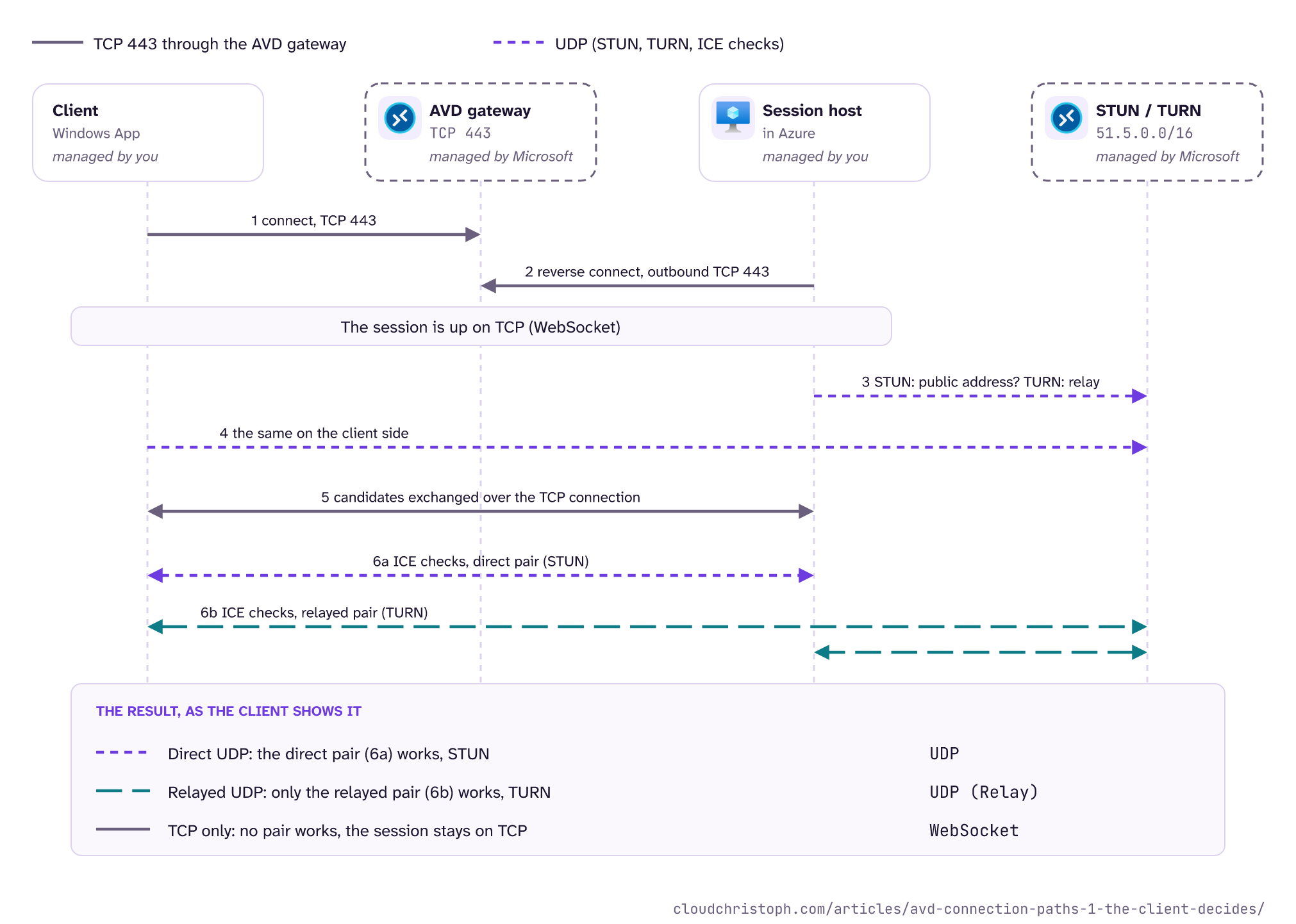
Every AVD session begins on TCP: client and session host each connect to the AVD gateway on TCP 443, and the gateway joins them. In the client this shows up as WebSocket. Then RDP tries to add RDP Shortpath, the faster path over UDP. UDP copes much better with packet loss and latency, so a session on UDP feels faster and survives a bad Wi-Fi better. If no UDP path works, the session simply stays on TCP.
Microsoft lists four RDP Shortpath options, because managed networks come twice: with the listener, and over ICE/STUN when there is none. From the client’s point of view that is one path, so there are three UDP paths:
| Path | How it works | Client shows |
|---|---|---|
| Managed network | Direct, over your VPN or ExpressRoute | UDP (Private Network) with the listener, otherwise UDP |
| Public network, STUN | Direct, over the internet through both NATs | UDP |
| Public network, TURN | Through a Microsoft relay in Azure | UDP (Relay) |
The labels for the three UDP paths are on configure RDP Shortpath. That a managed path without the listener also shows plain UDP is what I saw in my lab. Anything else, such as WebSocket, means the session runs over TCP.
Put together, a connect looks like this:
Multipath
Newer Windows clients add RDP Multipath on top: instead of one path, the session can establish up to five (up to three UDP, up to two TCP). The backups stay on standby, so the session switches between them without a reconnect. Microsoft lists the five paths under “Port scaling considerations” (RDP Multipath). Microsoft requires Windows App 2.0.559.0 (July 2025) or later for multiple UDP paths and 2.0.1069.0 (April 2026) or later for redundant TCP paths (RDP Multipath). In my lab it showed up in the client as a suffix, for example UDP (Relay) - Multipath, or as Multipath Websocket when only the TCP paths were up.
Reading the result
The Connection Information dialog is the quickest way to see what you got. In Windows App it sits behind the signal icon in the connection bar. It shows the transport, the round-trip time, and the available bandwidth.
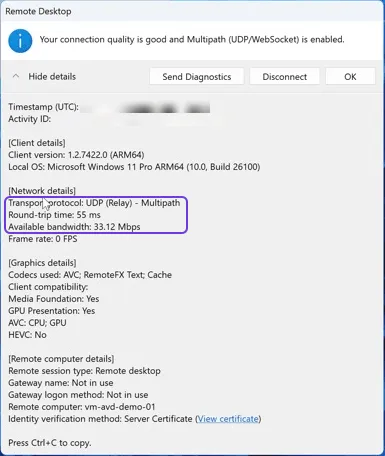
One thing that tripped me up: don’t look right after connecting. The UDP path takes a while to replace TCP. In my lab, the Windows client usually had UDP within a few seconds, the Mac took clearly longer, up to about half a minute, and the TCP path was dropped a little later. If you check right after connecting, you will see WebSocket. Give it a minute. I learned that the hard way: in one Mac session I opened the dialog too early, saw WebSocket, and noted “TCP”. The logs showed later that the relay kicked in just a few seconds after I looked.
And even after a minute, the label is only a hint. The Mac used three different labels for private paths, and Windows App showed Multipath Websocket for sessions that ran on UDP, as the logs show (more in part 4 and part 6).
Same network, different path
Here is the comparison that started this series, from two lab rounds a few days apart. Both clients sat on the same client network behind the same router, with the same public IP and a VPN route into Azure. They connected to the same session host, which sat behind Azure Firewall.
| Windows App for Windows 2.0.1484 (October 2026) | Windows App for macOS 11.4.3 (September 2026) | |
|---|---|---|
| Typical result | UDP (Relay) - Multipath |
UDP (direct STUN) or WebSocket |
| UDP up after | a few seconds | up to half a minute |
| Used the relay | Every time TURN was reachable | Once in nine sessions behind carrier NAT |
| Second round, same setup | 0 of 6 sessions on UDP | 1 of 6 sessions on UDP |
In the first round, the Windows client preferred the relay in every egress variant I tried (more in part 3). The last row is the second round, and it gets its own section later in the article. The macOS client took a direct path through the firewall’s NAT when it could. When it couldn’t, it usually stayed on TCP. Only once, behind the phone’s carrier-grade NAT, did it switch to the relay, about half a minute after connecting. Treat relay on the Mac as possible, but not something to rely on.
I don’t want to make this a Mac story (although macOS is what I work on most). The point is broader: the client takes part in the decision. Two users in the same office can get different paths, and a network change that helps one client may do nothing for the other. When someone reports that “the desktop with the SAP GUI is slow or blurry” (users rarely know it is AVD), the first question is which client they use, and the second is what the Connection Information dialog says.
Check that the client offers UDP at all
A client that doesn’t offer UDP never gets UDP, no matter how good your network is.
Windows: UDP is on by default. It is off if the policy Turn Off UDP On Client (fClientDisableUDP, under Remote Desktop Connection Client) is enabled (configure RDP Shortpath). Check your client policies for it. It’s often a leftover from an old workaround: it was the fix for a Remote Desktop bug in Windows 11 in 2022.
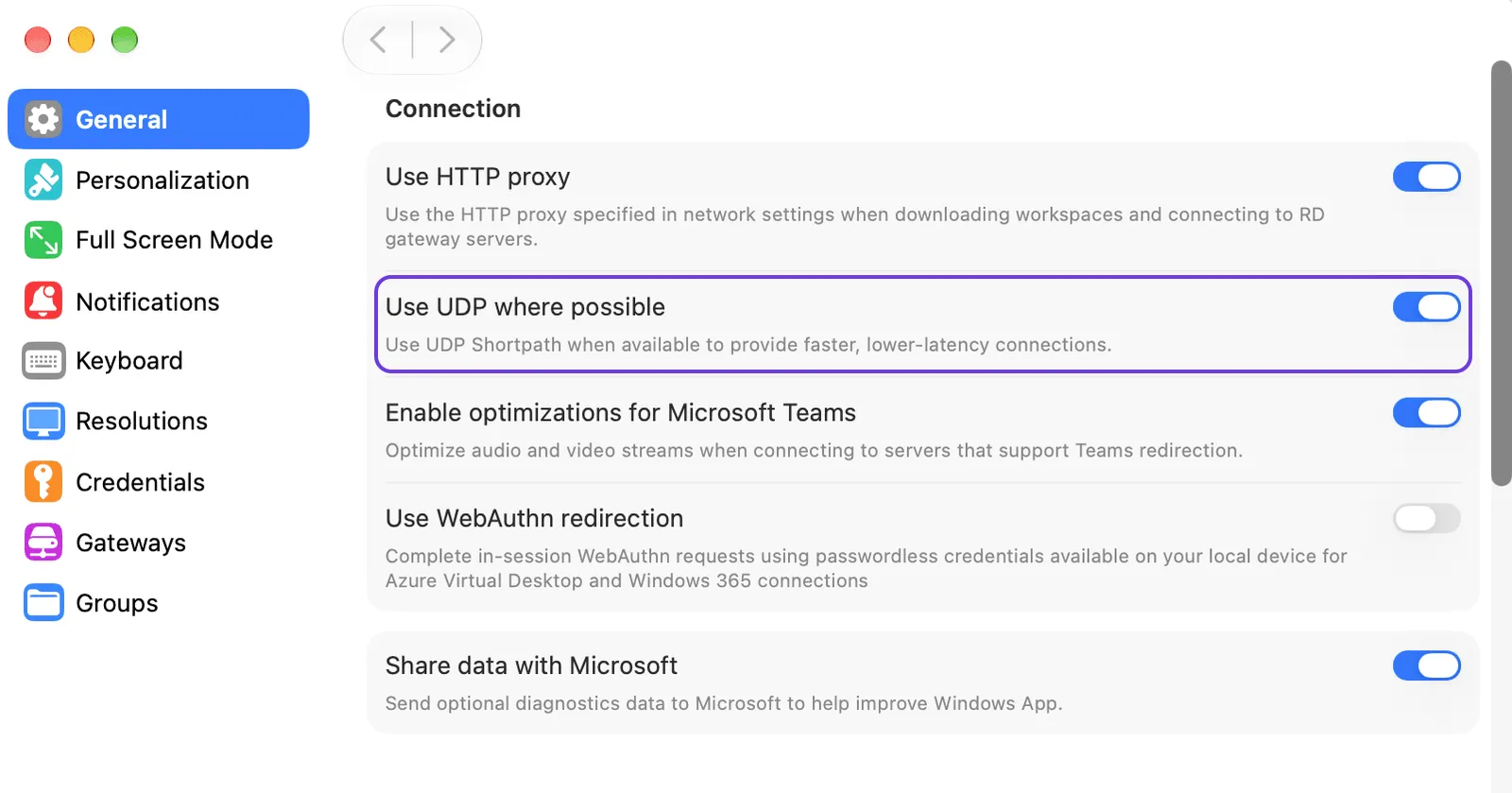
macOS: Windows App (yes, the app for macOS is also called “Windows App”, as if it isn’t confusing enough on Windows … Microsoft naming strikes again 🙄) has a setting Use UDP where possible under Settings, General. In my installation it was off until I turned it on. With it on, the Mac got UDP in most of my sessions from the client network. Microsoft documents that UDP is off by default since version 11.2.7 (November 2025). Admins can turn it on with the user defaults key ClientSettings.EnableAvdUdpSideTransport. In my tests the key lives in the domain com.microsoft.rdc.macos, so you can deploy it to managed Macs as a configuration profile.
iOS, Android, web: Microsoft’s feature comparison shows no RDP Shortpath at all in the web client and only managed networks on iOS and iPadOS. Android and ChromeOS get STUN and TURN, which the configure RDP Shortpath page still marks as preview.
UDP is not deterministic
Even with everything set up correctly, not every session gets UDP, and this time I have the logs to show it. The same Mac on the same client network, same session host, two connects 13 minutes apart:
| First connect | Second connect | |
|---|---|---|
| Dialog | UDP, 31 ms, 43 to 51 Mbps |
WebSocket, 29 ms, 12 Mbps |
| Firewall log | Mac to session host | only session host to Mac (private, public and relay address) |
Packet captures of later failed connects on the same network showed what happens on the Mac: it collects its candidates, reserves a relay, and then sends nothing at all.
Windows was just as inconsistent over several days. In the first round the Windows client got UDP through the relay in two of three runs, within a few seconds. In the second round, same client version, same session host, it got UDP in none of six runs. The captures showed why: it collected its candidates (in the later runs it even reserved a relay) and then never sent a single check.
So the deciding moment is on the client, and I couldn’t find a setting or a network condition that predicts it. The logs show no error and no fallback reason either. Part 4 shows what this means on a VPN and how the listener for managed networks makes the path predictable.
The practical takeaway: if a user reports a slow session and the dialog shows WebSocket, a reconnect is a good first step.
The client’s network
The client side needs outbound access too: UDP 3478 to 51.5.0.0/16 for STUN and TURN, and UDP to the session host’s public NAT address for a direct STUN path (network configuration). It also needs the client FQDNs on TCP 443 (required FQDNs). Corporate networks that only allow web traffic through a proxy block that UDP, and then everyone in that office runs on TCP. Part 3 covers the rules in detail.
The client’s NAT matters as well. In my experience, a home router or a small office firewall still allows a direct STUN path. Carrier-grade NAT, phone hotspots, and the stricter enterprise firewalls don’t, and then only the relay is left. So the client decides again: a client that uses the relay still gets UDP there, one that doesn’t stays on TCP.
How to check
- Connection Information dialog: read it after a minute; it shows transport, round-trip time, and bandwidth.
- Client version: Multipath needs Windows App 2.0.559.0 (July 2025) or later.
- Client UDP setting: the
fClientDisableUDPpolicy on Windows, “Use UDP where possible” on macOS. - The client network:
avdnettest.exeon a Windows client tests DNS, STUN, TURN, and the NAT type from where the user sits. For macOS and Linux there is avd-shortpath-test, my unofficial counterpart: the same checks, plus hints for VPN, proxy, and carrier-grade NAT. Both tell you whether UDP can work, not whether a session uses it: in my testsavdnettest.exesaid “very likely to work” for sessions that stayed on TCP. - Reconnect before you start a deeper investigation into a single WebSocket session.
- The whole user base: don’t ask around, read the logs. Part 6 shows how to classify every session by path.
Conclusion
The client and the session host decide together which path a session takes, and different clients choose differently in the same network. Make sure your clients offer UDP, wait a minute before you judge the transport, and accept that a single session sometimes stays on TCP.
Next time someone tells you their remote desktop feels slow, ask for the client first. Hope it helps!
In part 2 we move to the other end: what the host pool and session host settings change, and why switching off STUN or TURN to “force” the other one did not work the way I expected.
Was this useful?
Noted. The next part is in the works. Get it by mail ↓

Comments